Introduction to WordPress backup
Backup is essential for all WordPress websites. Why? Because websites are vulnerable: technical errors, hacker attacks or data loss can happen at any time. A well-done backup can save the owner from serious losses. There are many tools available to back up your website. However, not all are the same: some are easy to use, while others offer more detailed options. All In One WP Migration, Duplicator and Manual Backup are the three most popular options. Each has its own advantages and limitations, so it is important to understand which is best suited to your situation. In this article, we will examine the functionality and benefits of all three methods.
All In One WP Migration: simplicity and efficiency
From All In One WP Migration plugin stands out from the rest for its simplicity and efficiency. Although the plugin is basically free, for full functionality, it is worth considering the paid version: it allows automatic backups, larger file size management and cloud storage. All In One WP Migration is particularly useful if you are looking for a quick and easy solution to back up your website. However, it's important to note that it can only be used effectively on intact websites. This plugin offers not only backup, but also migration, which can be particularly useful if you want to move your website to another hosting. The simple interface allows you to perform a backup with a few clicks, while a restore is a simple upload of the saved file and the system will automatically rebuild the site.
When using the plugin, it is possible to filter the database and files, which means that only the necessary elements can be saved. All In One WP Migration saves the backups in a unique file format (.wpress), which can only be restored using the plugin. This increases security, but it also adds a bind. The paid version offers additional extras such as encrypted backups, which can be particularly useful for sensitive data.
During the backup process, you should pay attention to setting up notifications so that you always have up-to-date information about successful or unsuccessful backups. Automatic notifications help to ensure that any errors are detected in time and can be rectified quickly. All In One WP Migration thus supports not only backup but also problem resolution. It integrates with many cloud services, but many of these are only available in the paid version, so it's worth considering your needs and budget.
Overall, All In One WP Migration is an ideal choice for novice users looking for a simple and efficient solution to back up their WordPress website. Simplicity sometimes comes with trade-offs, but the plugin offers features that allow you to keep your website secure with minimal effort. The paid version opens up additional options that provide greater flexibility, especially for larger or more complex websites.
Duplicator: detailed backup options
A Duplicator plugin stands out for its attention to detail and flexibility. It is primarily designed for website cloning and migration, but is also excellent for full backups. The free version allows you to package your entire website into one archive file, including files and database. One of the biggest advantages of Duplicator is that it provides the option to exclude different files, folders and tables from the backup, so you can customize the backup process. This feature can be useful for skipping larger files that do not need to be stored for every backup.
The backup process with Duplicator is a bit more complex than with All In One WP Migration. In addition to the archive file, it also generates an installer.php file to help with the restore process. This approach requires more technical knowledge, especially when restoring, where the database username and password are required. Although the free version of Duplicator can be used to backup smaller websites, for larger and more complex sites the simplified processes and additional features offered by the Pro version can offer significant benefits.
In the free version, you can download backup files directly to your computer and password-protect them if necessary, for added security. However, cloud storage and other advanced features are only available in the Pro version. For the free version, it is important to store your backup files in a safe place to protect them from accidental deletion or computer failure.
Using Duplicator, the backup and restore process can take advantage of the pre-backup scan feature offered by the plugin, which checks the status of the website before saving. This helps to detect any errors that may affect the success of the backup. Such pre-backup checks can save time and effort, especially if frequent backups are performed. Duplicator can therefore be an ideal choice for those looking for a more technically thorough solution and not afraid of more complex processes.
Manual backup: total control
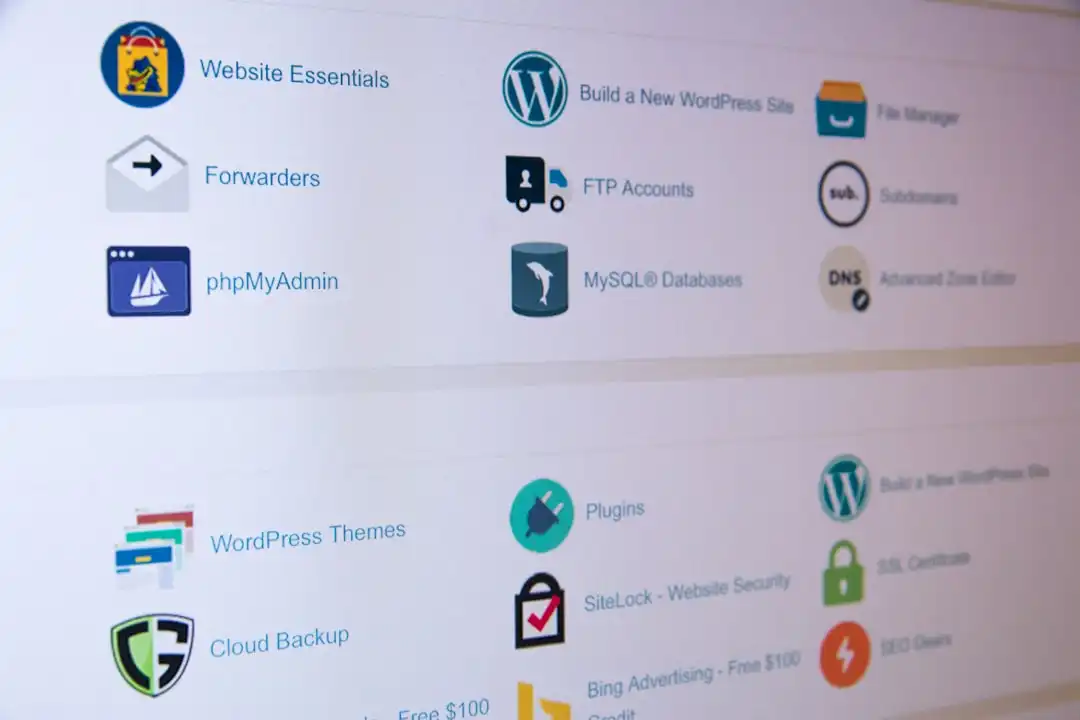
The manual backup method gives you the most control over the backup process, although it is also the most time-consuming and tedious solution. This method is particularly useful if the website has crashed and you cannot access the WordPress administration interface. The process involves downloading the website files via FTP, while the database can be exported using tools such as phpMyAdmin. This method allows you to save exactly the files and data you need, so you can avoid storing unnecessary data.
When backing up manually, it is important to back up files and the database separately and regularly. This ensures that you always have an up-to-date and accurate backup. However, this solution requires technical knowledge, as you need to know how to use FTP and how to export and import databases. For users who can handle these technical details, manual backup gives you full control and flexibility over the backup process.
One advantage of manual backup is that it does not require any plug-ins, so it is completely free. This can be especially useful when working with budget constraints or when the size of the website makes file size limitations of plug-ins a problem. However, such backup methods are more prone to errors, especially if not performed regularly or properly. It is therefore important that the backup process is carefully planned and monitored.
Manual backups are also a great way to debug, as they allow you to check each file and database item individually. This can help to accurately identify and resolve problems, especially if the website is no longer available. Although manual backup is not the most convenient solution, it can be an effective tool for users with technical skills to keep a website secure.
Table 1: Comparison of rescue methods
| Method | Cost | Usability | Functions | Technical need |
|---|---|---|---|---|
| All In One WP Migration | Paid (free version limited) | Easy | Automatic backup, cloud integration (paid) | Low |
| Duplicator | Free (Pro version is paid) | Medium | Cloning, moving, pre-backup scan | Medium |
| Manual rescue | Free | Macerás | Full control, all files available | High |
Advantages and disadvantages
One of the biggest advantages of All In One WP Migration is its simplicity and user-friendly interface. It's easy to use, and the paid version gives you access to even more features, such as cloud storage and encryption. However, the file size limit (250 MB) in the free version can be a major drawback, especially for larger websites. In addition, it can only be used effectively on intact websites, so it is not practical for crashed sites.
Duplicator gives you more control and the possibility to exclude different files from the backup. The free version requires technical knowledge, especially during the restore process, which is more complex than All In One WP Migration. However, the Pro version simplifies the process, which can be an advantage for users without technical knowledge.
The biggest advantage of manual backup is that you have full control, as you can access and save all files and database items. However, this method is time-consuming and technically challenging, especially for those who are not familiar with FTP or database management. However, it is a free solution that can be particularly useful when working with budget constraints.
All three methods have their strengths and weaknesses. All In One WP Migration can be ideal if you are looking for a quick and simple solution, while Duplicator gives you more control over the backup process. Manual backup offers the greatest flexibility, but only if you have the technical knowledge.
When and how to save
Backing up websites is not a one-off task. It should be done at regular intervals to ensure that you always have an up-to-date copy. The frequency of backup depends on how often the website is updated. If it is updated daily, then a daily backup is recommended. If less frequently, a weekly or monthly backup may be sufficient. Setting up automatic backups can make this process easier and ensure that backups are made regularly without the need to do them manually.
During the backup process, it is important to store the backed up files in a safe place. This can be offline storage, such as an external hard drive, or online storage using cloud services. Backups stored in the cloud can be particularly useful if the original storage device fails or is lost. All In One WP Migration and Duplicator also offer cloud integration options, although most of these are only available in the paid versions.
When setting up scheduled backups, it is also worth taking into account the traffic on the website. If the website has a high traffic volume, it is a good idea to schedule backups during less busy periods to avoid unnecessary server load. Timed backups allow the backup process to run automatically in the background, minimising the need for manual intervention.
In addition to regular backups, it is also important to test the recovery process. This ensures that backups actually work and that we can restore the website quickly if necessary. During the backup process, it is worth making a note of the necessary data and passwords to ensure that you do not run into any obstacles during the restore process.
What to do after saving
Once the backup has been created, it is important to check that it is successful. Download the backup to your own device and archive it safely. This can be offline storage, for example on an external hard drive, or online, for example in a trusted cloud storage location. All In One WP Migration and Duplicator also offer various export options to archive backups securely.
Check that the files and database have been successfully backed up. To do this, it may be useful to perform a test restore from time to time to make sure that the backup is actually usable. This step is particularly important as errors may occur during the backup process that are only discovered during the restore. Such testing can help to identify potential problems in time.
Repeat the backup regularly as the website is updated. This means backing up before and after every major update, new content or add-ons are installed. This ensures that you always have a current and working copy of your website. Setting up automatic notifications can help you stay up to date with the status of your backups.
When managing your backups, it is important that files are stored securely and protected from unauthorised access. If backups are stored online, use strong passwords and two-factor authentication where possible. This increases security and prevents unauthorised access to sensitive data. Using the right security measures is key to protecting your website and your backups.
Creating a WordPress backup is not just a simple task, it's one of the fundamental pillars of protecting your website. All In One WP Migration's simplicity, Duplicator's granularity, and full control over manual backups all offer excellent options for keeping your website secure. Each user should find the best solution for them, taking into account their technical knowledge, website size and budget. It is important to back up regularly, test the restore process and store backups securely. This ensures that your website is always protected and can be quickly restored in the event of any problems. If you would like help with this, please contact me at info@kubicsekweblapok.hu or you can apply to free consultation.